
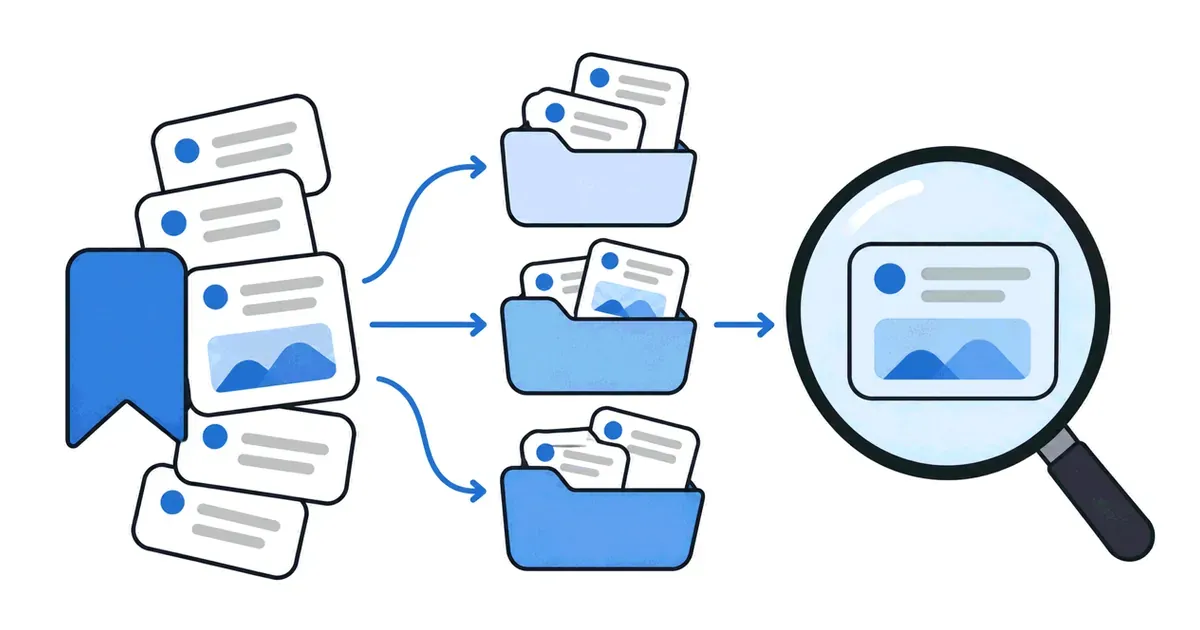
Bookmarks on X, the site still searched for as Twitter, are the quickest way to keep a post: one tap and it is in your list. The trouble starts when you want it back. The list is one long scroll, folders cost extra, and a post you bookmarked last spring can be hard to reach. This guide covers where bookmarks live, what search and folders can and cannot do, and how to keep the posts that matter.
X changes its app often, and menus can differ between iPhone, Android and the web. The steps below were checked on 16 November 2026 against X's help and developer pages and the current website.
How do you bookmark a post on X?
- Find the post in your timeline, in search or on a profile.
- Tap the bookmark icon (a ribbon shape) in the row of buttons under the post. In some versions of the app it sits behind the Share icon instead.
- The icon fills in and a short message confirms the bookmark. Tap the filled icon again to remove it.
The X Help Center page on Bookmarks describes the same flow for the app and the web.
Where do you find your bookmarks on X?
In the X app
- Tap your profile picture in the top-left corner to open the side menu.
- Tap Bookmarks.
- Scroll the list. The most recent bookmark is at the top.
On a computer
- Go to x.com and sign in.
- Click Bookmarks in the left sidebar. On a narrow window it may be under More.
- Or type the address x.com/i/bookmarks, which opens the list directly and is worth saving as a browser bookmark of its own.
Are X bookmarks private?
Yes. X's developer documentation states that "Bookmarks are private and only visible to the user who created them" (X API documentation on Bookmarks). The author of a post is not told who bookmarked it. X does show a total bookmark count on posts, next to likes and reposts, so authors can see that people saved a post, but not which people.
Can you search your Twitter bookmarks?
This is the question most people arrive with, and the honest answer is: it depends on your account and the version of X you are using. X's help pages describe saving and folders but do not promise a search box inside Bookmarks, and features around Bookmarks have been added and moved more than once. Check the top of your Bookmarks page first.

If there is no search box, three workarounds help:
- Browser Find on x.com. Open x.com/i/bookmarks, scroll down until the posts you want have loaded, then press Ctrl+F (Cmd+F on a Mac) and type a word you remember. It only searches what has loaded, so scroll far enough first.
- Remember the author. X's normal search can find posts from one account with a query like from:username keyword. It searches all of that account's posts rather than your bookmarks, yet it often finds the one you meant.
- Save to an app with search. Share the posts you care about to a save app that indexes them. It covers new saves from the day you start.
How do bookmark folders work on X?
Folders let you sort bookmarks into groups such as "Recipes" or "Design ideas". X offers them as part of its paid plans: its X Premium how-to page covers bookmark folders as a subscriber feature. On a free account, every bookmark sits in one list.
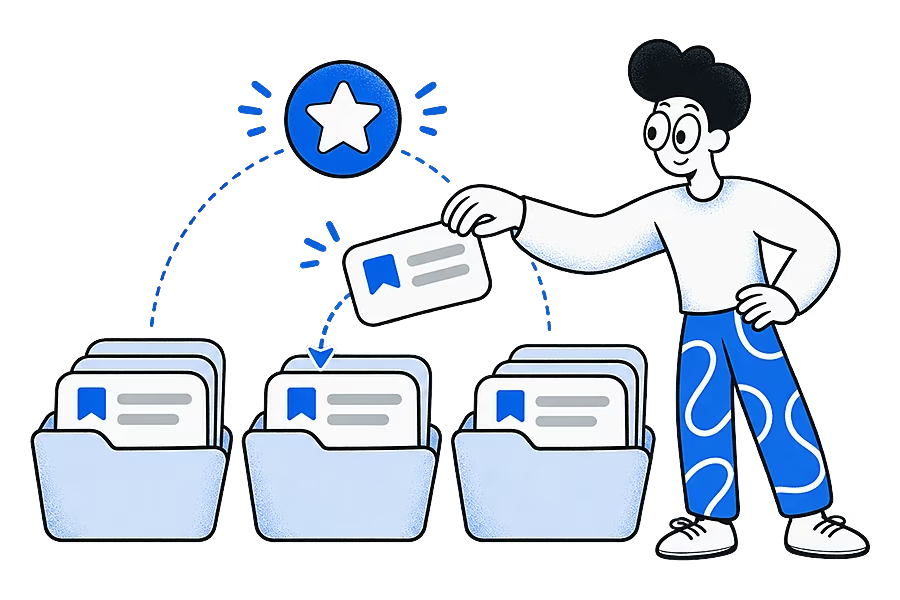
With a plan that includes folders, the usual flow is:
- Bookmark a post. The confirmation message offers Add to folder.
- Pick an existing folder or create a new one and name it.
- Open Bookmarks to see your folders at the top, with all bookmarks still listed under them.
Folders are private like the bookmarks in them. They help most if you sort as you save, because going back through hundreds of old bookmarks one by one takes a long time.
How do you delete or clear your X bookmarks?
- One at a time: tap the filled bookmark icon on the post, or open the post's share menu and choose to remove it from Bookmarks.
- All at once on the web: open Bookmarks on x.com, click the three-dot menu at the top of the page and choose Clear all Bookmarks. This cannot be undone, so copy any links you want to keep before you do it.
Why do X bookmarks disappear?
A bookmark is a pointer to someone else's post, not a copy of it. When the post changes, your bookmark changes with it.
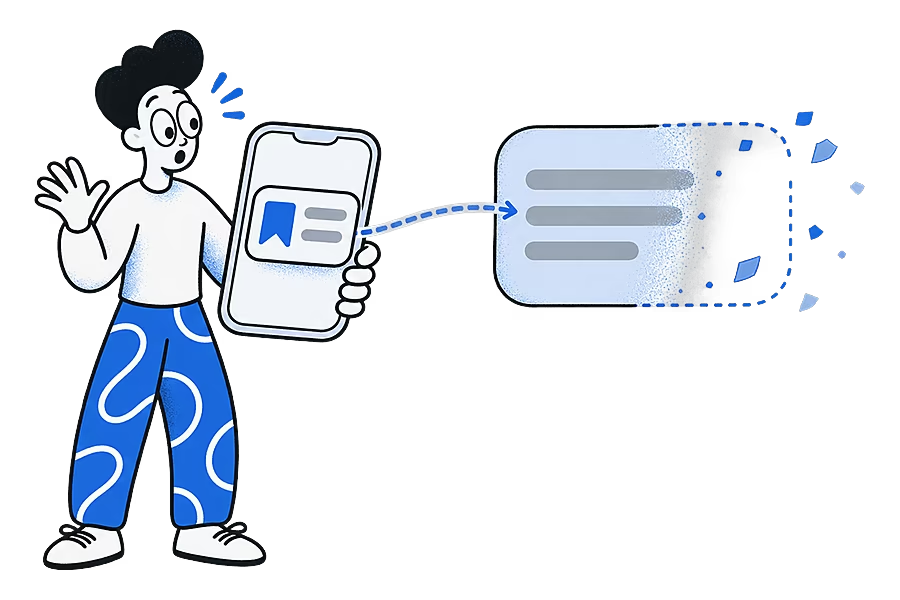
- The post was deleted. Deleted posts drop out of your list or show as unavailable.
- The account went private or was suspended. If you do not follow a protected account, you can no longer open its posts.
- The author blocked you. Their posts stop showing to you, bookmarked or not.
- You are on another account. Bookmarks belong to one account, so check which one you are signed in to.
The wider web loses pages the same way. Pew Research Center found that 38% of web pages that existed in 2013 were no longer available a decade later (Pew Research Center, "When Online Content Disappears"). Our glossary calls this link rot.
How do you keep X posts somewhere you can search?
If you save from X as well as Instagram, Reddit, TikTok and the web, one searchable place beats five separate lists. Ideafex is built for this, and we make it. Other save apps work in a similar way.
- On your phone: tap the Share icon on a post, choose Share via or the option that opens your phone's share sheet, and pick Ideafex. If Ideafex asks, choose folders under "Save to folders". You see "Saved to Ideafex" and stay in X. The share from any app page shows the full flow.
- On a computer: right-click a post's link or timestamp on x.com and choose Save link to Ideafex with the Ideafex browser extension for Chrome, Edge or Firefox. You can also select the text of a post and save the selection with the page link.
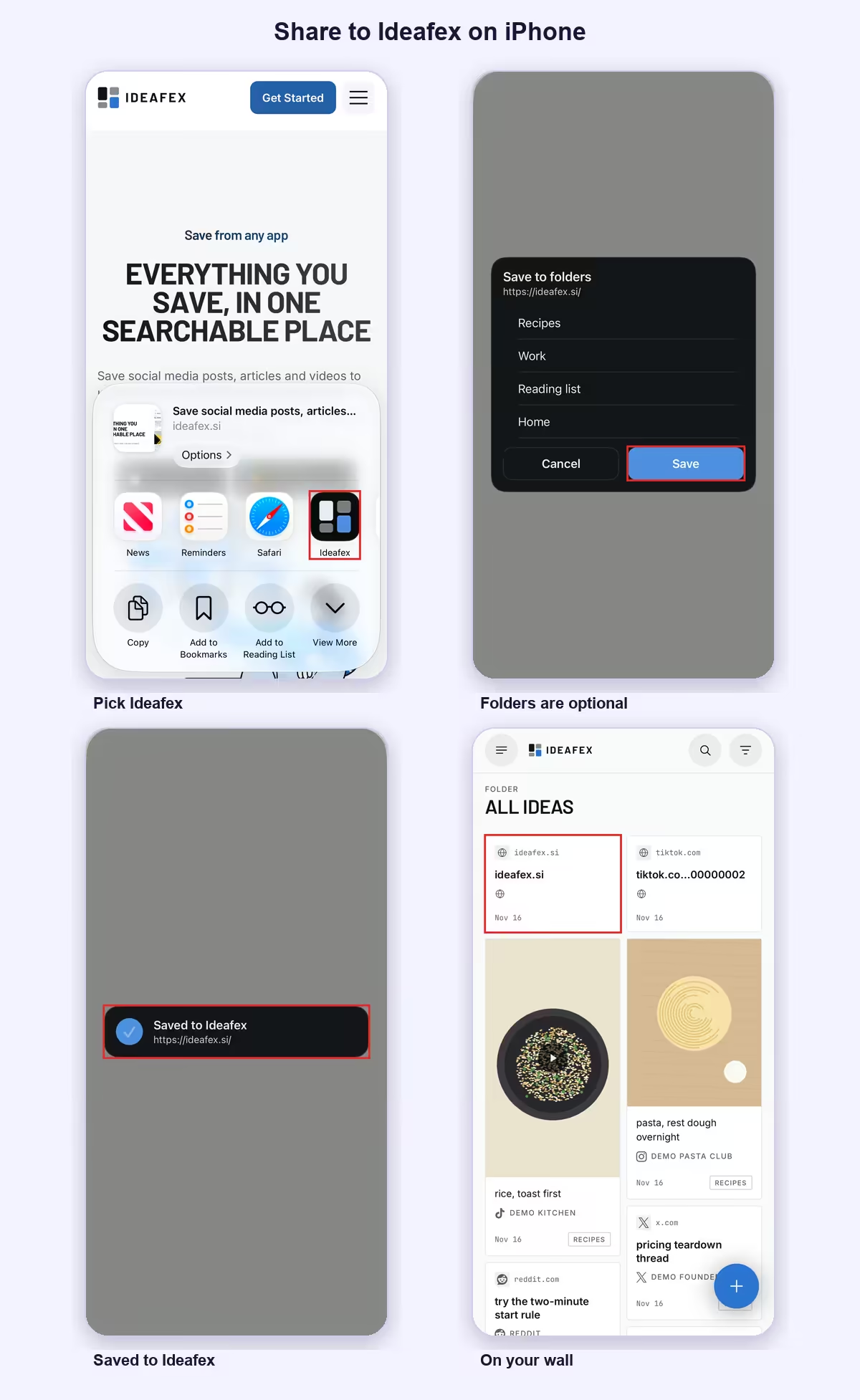
Every plan keeps the link, the platform and a link preview, and search covers your notes, source names and page titles. Add a note such as "thread on pricing pages" and that is what you can search for later. On Pro, Ideafex also tries to fetch the post text, author, images and video, and makes a transcript of videos it can download. Fetching is best-effort, because X does not always allow the request.
Ideas sit in nested folders, and one idea can live in several. The platform filter shows only your X ideas when you want them. Ideafex has no import from X Bookmarks, so share across the posts you still need, and keep using X's bookmark button for quick saves.
Is X's Bookmarks list enough on its own?
For a few dozen posts you read within a week, yes. It is free, private and built in. It gets harder when the list runs into the hundreds or you cannot pay for folders. It also gets harder when the posts you want sit next to articles and videos from other apps. Our guide to saving social media posts in one place covers that setup, and the Ideafex home page shows how the wall works on Android, iPhone and the web.
Quick answers
In the app, open the side menu from your profile picture and tap Bookmarks. On a computer, click Bookmarks in the left sidebar of x.com, or go to x.com/i/bookmarks.
No. X's developer documentation says bookmarks are private and only visible to the user who created them. Posts can show a total bookmark count, but not who bookmarked them.
X's help pages do not promise a search box inside Bookmarks, and not every account sees the same options. Without one, scroll the list and use your browser's Find on x.com, or save posts to an app that has search.
No. X lists bookmark folders among the features of its paid Premium plans. On a free account, all bookmarks sit in one list.
A bookmark points to the original post. If the author deletes it, protects the account, or blocks you, the post can drop out of your list or stop opening.
Keep the posts you bookmark where you can search them
Share any X post to Ideafex and it joins one searchable wall with your saves from every other app. Free on Android, iPhone and the web.


Related reading

Save social media posts from every app in one searchable place
Share posts from Instagram, TikTok, X, Reddit or any other app to one searchable wall, then find them again by platform, folder or what they said.
Read more →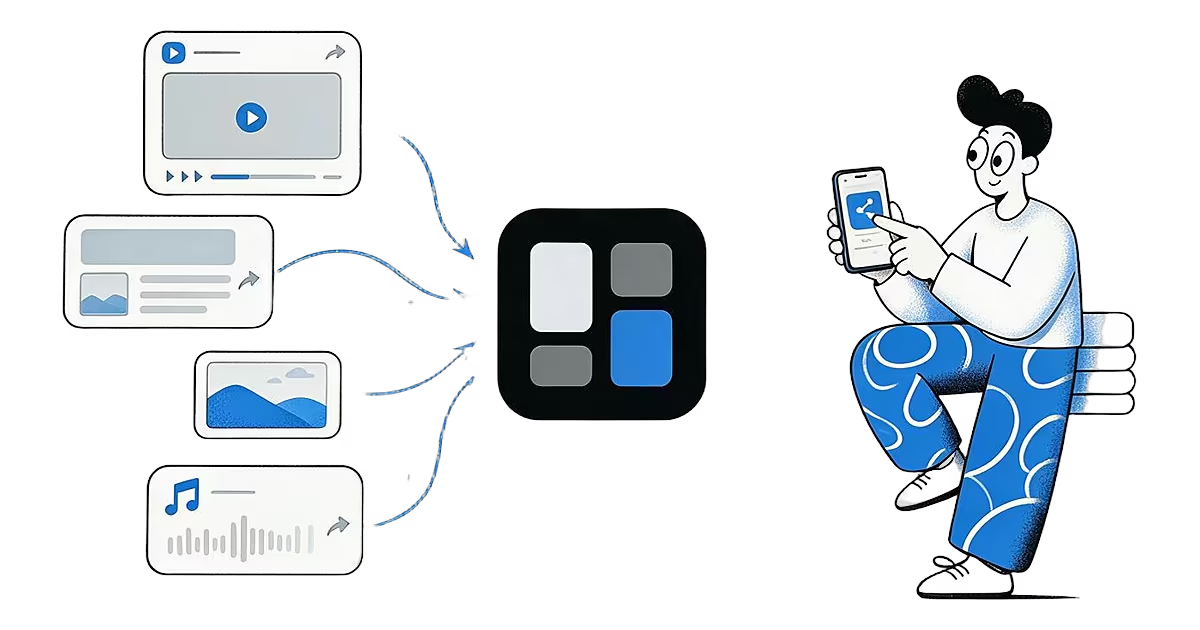
Share from any app: save to Ideafex from the share sheet
Tap Share in any app, pick Ideafex, and the post, link, text or file is saved without leaving the app, even offline.
Read more →Ideafex for Chrome: Save Text, Screenshots and Links from Any Page
A Chrome extension that saves selected text, screenshots and image, video, audio or page links to your Ideafex account, with a note, even offline.
Read more →