
Ideafex makes this page; we've tried to be fair.
Ideafex is now on the Microsoft Edge Add-ons store. The same extension that runs in Chrome now installs in Edge from Microsoft's own store, and what you save lands on the same wall as your phone saves. This post covers what it saves, how to install it and sign in, and how it compares with Collections, the Edge feature that Microsoft has now removed.
We make Ideafex, so read the comparison with that in mind. Facts about Edge come from Microsoft's support pages, linked in the text and checked on 20 November 2026.
What happened to Collections in Microsoft Edge?
Collections was the Edge panel where you gathered pages, images and notes into named groups. Microsoft is retiring it in two steps. From Edge version 145, you can no longer add new items. Microsoft's support page now says Collections is no longer available starting with Edge version 149, released on 4 June 2026 (Microsoft's Collections support page).
That leaves a gap for anyone who used Collections as a scrapbook. The pages you saved can move to Favorites. The quotes, images and notes you kept next to them cannot.
What can you do with the Collections you already have?
Microsoft offers three routes, and which one you get depends on the account you use in Edge:
- Move to Favorites. One click moves saved pages into Favorites, with one folder per collection in the root of your Favorites. Images, notes and other items that are not pages are left out.
- Bing Saves. With a personal Microsoft account, your Collections content stays readable at bing.com/saves instead of being exported.
- Export. Work and school accounts can export their Collections data for a backup.
Do one of these first, whatever you use next. Ideafex cannot import Collections, Favorites or an export file, so your old items stay where Microsoft put them.

What does Ideafex for Microsoft Edge save?
The extension adds a toolbar button and items to the right-click menu. Each save opens a small note window, so you can write why you kept it before you press Save.
- Selected text. Select a sentence or a paragraph, right-click and choose Save selection to Ideafex. The page title and link are saved with the quote, so you always know where it came from.
- A screenshot of part of the page. Press Alt+Shift+A, or use the screenshot button in the toolbar popup, and drag a rectangle around the part you want. The screenshot opens in the note window before it is saved.
- Links. Right-click any link and choose Save link to Ideafex to keep an article, a post or a video page for later.
- Image, video and audio addresses. Right-click an image, a video or an audio file to save its address. The file itself is not downloaded.
In the note window, Cmd+Enter on a Mac or Ctrl+Enter on Windows saves the item, and Esc closes the window. An empty note is fine. Links you paste into the note are picked up as links.
That list covers the things Collections held that the move to Favorites drops: a quote, a picture of part of a page and a note of your own. More detail is on the Ideafex browser extension page.
How do you install Ideafex in Microsoft Edge?
Ideafex is free to install. You need a free Ideafex account to sign in. Microsoft's steps for adding any extension are on its help page for adding, turning off and removing extensions in Edge. For Ideafex they look like this:
- Open the Ideafex listing on Microsoft Edge Add-ons in Edge.
- Select Get.
- Review the permissions, then select Add extension.
- Select Extensions next to the address bar to find Ideafex, and show it in the toolbar if you want its button visible.
Edge can also install extensions from the Chrome Web Store once you allow extensions from other stores. Use the Edge Add-ons listing instead. It is the build we publish for Edge, so it updates through Microsoft's store.
How do you sign in?
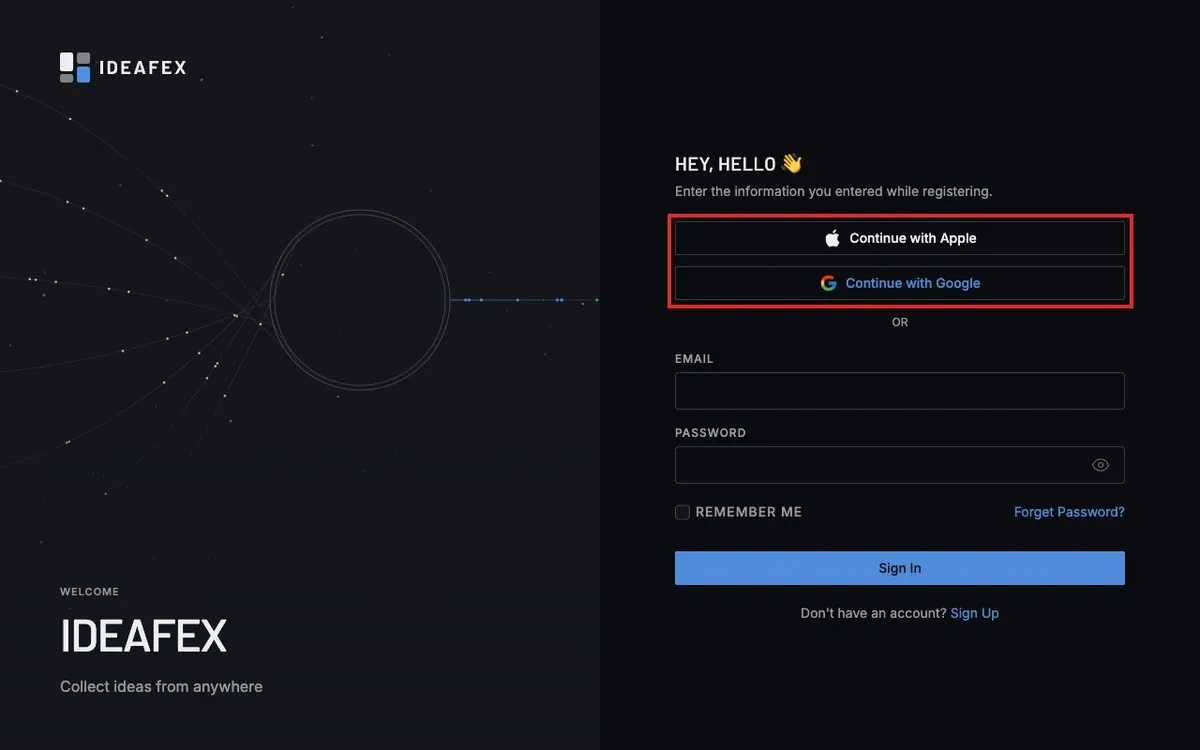
Click the Ideafex button in the toolbar and choose Sign in. A sign-in window opens on accounts.ideafex.si, where you use the same account as on your phone or in the Ideafex web app. If you do not have an account yet, create one for free in the Ideafex phone app or at app.ideafex.si.
Sign-in uses OAuth, so the extension never sees your password. If a security check blocks the sign-in window, the extension opens the sign-in page in a normal tab and keeps retrying for up to two minutes. Finish the check in that tab. While you are signed out, the popup shows only the sign-in screen.
Where do your saves go?
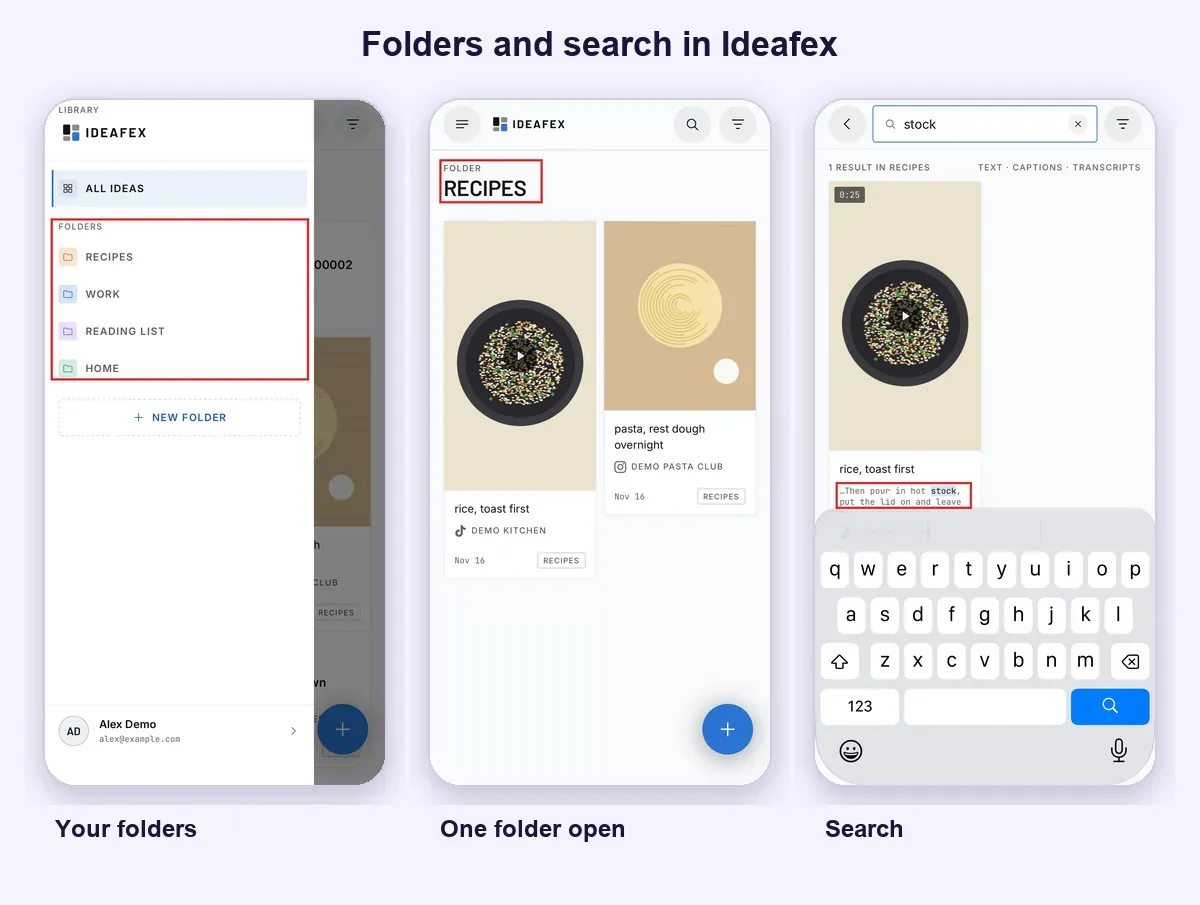
Everything you save in Edge goes to your Ideafex account. It sits on one wall next to the posts, articles and videos you share from apps on Android and iPhone. You can sort ideas into nested folders and find them again with search, on your phone or at app.ideafex.si.
The free plan has unlimited ideas, search and three folders. Pro adds unlimited folders, fetched media, article text and transcripts, and AI access, so an assistant such as Claude can search what you saved.
Does saving work offline?
Yes. Every save goes into a local queue in Edge first and uploads by itself, exactly once, when you are back online. You can keep saving on a train or a weak hotel connection. Only items that need your attention are marked on the toolbar icon. The same rule applies on the phone, as explained on our offline sync page.
What can the extension see?
The extension reads a page only when you choose to save from it. It sends what you save, with the page title and address, only to your own Ideafex account at api.ideafex.si. It asks for these permissions:
- contextMenus for the right-click items.
- activeTab to read the title, address and screenshot of the current tab after you click or press a shortcut.
- scripting to draw the selection rectangle after you start an area screenshot.
- storage and alarms to keep the upload queue on your device and retry it once a minute.
- identity for the sign-in window.
Its only host permission is api.ideafex.si. It has no analytics, no ads and no remote code, and sign-in tokens stay on your device. It does not read your browsing history, bookmarks, cookies or form fields. The full text is in the privacy policy.
How does Ideafex compare with Collections and Favorites?
| Option | Saves pages | Saves quotes and notes | Saves part of a page as an image | Saves from phone apps |
|---|---|---|---|---|
| Collections | No new items since Edge 145, removed in Edge 149 | Removed | Removed | No |
| Favorites | Yes | No | No | No |
| Bing Saves | Old Collections content, to view | Old Collections content, to view | Old Collections content, to view | No |
| Ideafex | Yes, as links with the title | Yes, a quote with its source and a note | Yes, an area screenshot with a note | Yes, Android and iPhone share sheet |
Favorites is the simplest home for pages you want to reopen. Ideafex fits if your Collections were more of a scrapbook, or if you also save posts and videos on your phone and want them all in one place.
What does Ideafex not do?
Some things Collections users may expect are missing, so check them before you switch:
- No import from Collections, Favorites or a Collections export file.
- No reader copy of articles. Ideafex keeps the link and its title, and on Pro the article text where it can fetch it.
- No tags, no shared collections and no export.
On a phone, you save through the share sheet in the Ideafex app. The same extension is on the Chrome Web Store and on Firefox Add-ons. The extension follows your browser language: English, Arabic, French, Spanish, German, Turkish and Portuguese.
Which option should you pick?
- If you only need to reopen pages later, move your Collections to Favorites and stop there.
- If you kept quotes, screenshots and notes in Collections, add Ideafex to Edge and save them with a note from now on.
- If you mostly save from your phone and only sometimes from a laptop, Ideafex keeps both in one place.
For other approaches, see our guide to web clippers, the best bookmark manager apps and, if you came from Pocket, the Pocket extension replacement guide. The Ideafex home page shows how the wall works across devices.
Quick answers
Yes. Ideafex is on the Microsoft Edge Add-ons store. It saves selected text, area screenshots and links from Edge to your Ideafex account, with a note.
Yes. It is free to install, and you sign in with a free Ideafex account. Pro adds unlimited folders, fetched media, article text, transcripts and AI access.
No. Ideafex has no import for Collections, Favorites or a Collections export. Move your pages to Favorites or keep them in Bing Saves first, then save new items with Ideafex.
Microsoft stopped new additions from Edge 145 and says Collections is no longer available starting with Edge 149, released on 4 June 2026. Pages can move to Favorites; images and notes cannot (Microsoft support).
Yes. Saves wait in a local queue and upload by themselves, exactly once, when you are back online.
Save from Edge, find it anywhere
Add Ideafex to Edge from Microsoft Edge Add-ons, sign in with a free account and save your first quote with a note. It lands next to your phone saves.


Related reading
Ideafex for Chrome: Save Text, Screenshots and Links from Any Page
A Chrome extension that saves selected text, screenshots and image, video, audio or page links to your Ideafex account, with a note, even offline.
Read more →
Ideafex Web App: Your Saved Ideas on Any Computer
The Ideafex web app opens your wall in any browser: add links and notes, search, sort into folders, filter by platform and manage your plan.
Read more →
What Is a Web Clipper? How Clipping Tools Work
A browser extension or app feature that saves the content of a web page, not just its address.
Read more →